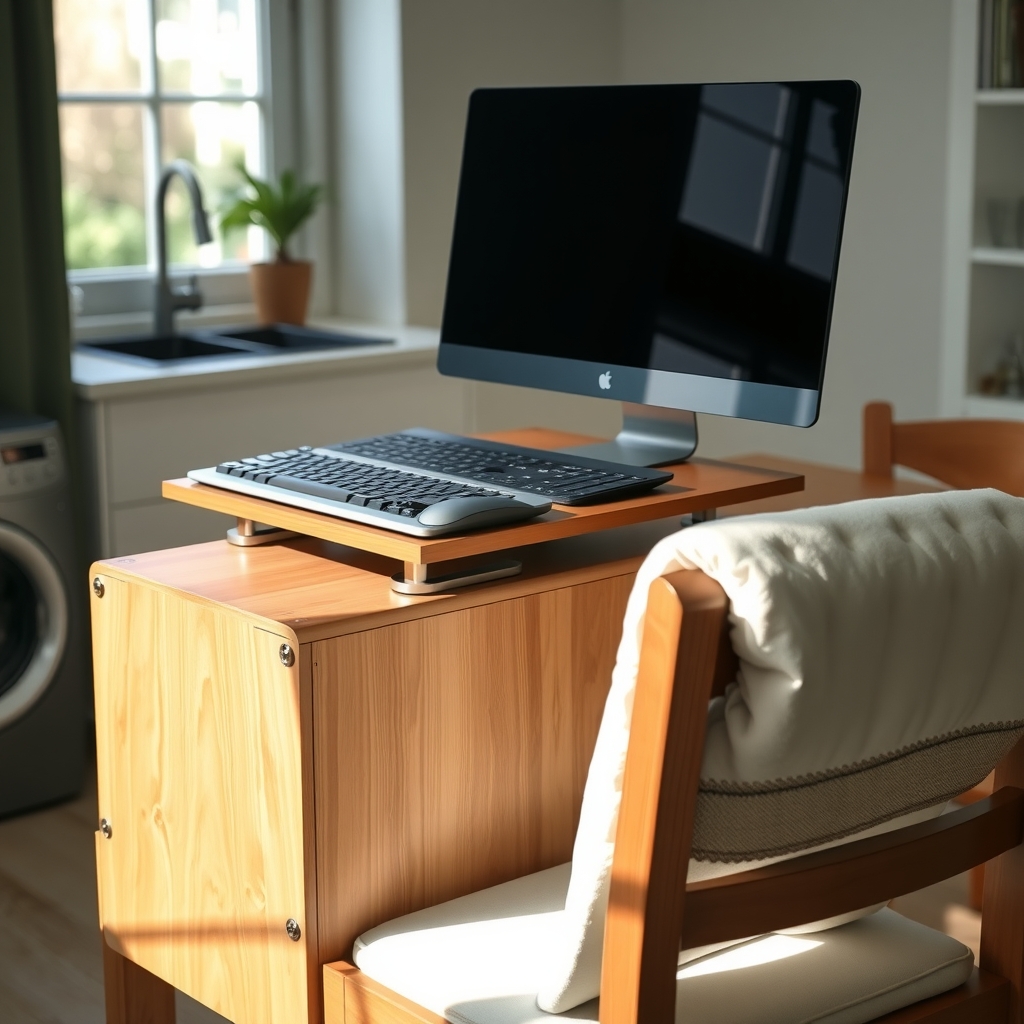
Many people work from a kitchen table because it is the only flat surface available, but the standard height and hard chairs often lead to hunched shoulders, a tilted neck, and sore wrists after a few hours. This guide is for anyone who uses a laptop at a kitchen table — whether occasionally or every day — and wants to feel more comfortable without buying specialized office furniture.
You will learn how to raise your screen to a better viewing height using books or boxes, choose and adjust a chair with cushions or towels for support, and position an external keyboard and mouse so your forearms stay relaxed. We also cover simple ways to manage glare from windows or overhead lights, keep cords from tangling, and build in regular movement breaks that fit into a busy household routine. If you share the table for meals, homework, or other tasks, you will find tips for quick setup and teardown. Check with a healthcare professional if you have persistent pain or specific medical concerns.
Choosing the Right Chair and Adjusting Seat Height
A sturdy chair with a supportive backrest makes the biggest difference when you’re working from a kitchen table. Dining chairs often have hard seats and straight backs that encourage slouching after an hour or two. If you have an office chair with adjustable height and lumbar support, bring it into the kitchen. If not, choose the chair with the most comfortable seat cushion and the highest back. A folded towel or small pillow placed at the small of your back can fill the gap between you and the chair, helping maintain the natural curve of your spine.
Seat height matters more than most people realize. Sit so your feet rest flat on the floor with your thighs roughly parallel to the ground. If the chair is too high, place a sturdy box, a thick book, or a footrest under your feet. If it’s too low, add a firm cushion or folded blanket to raise your hips slightly above your knees. This angle opens the hip joint and reduces pressure on the lower back. Many people find that a seat depth allowing two to three fingers of space between the front edge and the back of the knees improves comfort during long sessions.
- Test the height by typing a few sentences; your elbows should stay close to your body at about a 90-degree angle.
- Keep shoulders relaxed, not hunched toward your ears.
- Shift your weight occasionally and stand up for a minute every 30 to 40 minutes.
If you experience persistent discomfort, consider checking with a healthcare professional for personalized guidance.
Positioning the Laptop Screen at Eye Level
The top of your laptop screen should sit at or just below eye level so your neck stays in a neutral position. At a kitchen table, the screen usually rests far too low, which encourages a forward head posture that can strain the neck and upper back over time. Raising the laptop is one of the simplest changes you can make, and you likely have what you need already. A sturdy stack of large books, a wooden cutting board placed on top of a box, or an upside-down storage bin can serve as a stable riser. Aim for a height where your gaze naturally falls on the upper third of the screen when you sit tall with relaxed shoulders.
Stability matters as much as height. Wobbly stacks shift when you type, forcing subtle neck corrections that add up. Test your riser by pressing gently on the laptop corners; if it moves, widen the base or add a non-slip mat or damp towel between layers. Keep the screen about an arm’s length away — roughly 20 to 30 inches — so you can read text without leaning forward. If the screen feels too far once raised, increase the font size or display scaling rather than moving it closer.
- Use cookbooks, a shoebox, or a small step stool as a base
- Place a silicone trivet or shelf liner on top to prevent sliding
- Tilt the screen back slightly (10–15 degrees) to reduce glare and match your line of sight
- Check alignment by closing your eyes, sitting tall, then opening them — your eyes should land near the top of the browser tab bar
Many people find this adjustment alone reduces end-of-day neck tightness. If discomfort persists, consider checking with a healthcare provider to rule out other causes.
Using an External Keyboard and Mouse for Neutral Wrist Posture
An external keyboard and mouse are the single most effective tools for protecting your wrists and shoulders at a kitchen table. When the laptop screen is raised to eye level, the built-in keyboard sits too high and too far back, forcing your shoulders to hike and your wrists to bend upward — a posture that often leads to fatigue or discomfort over time. Separating the input devices from the screen lets you keep your elbows close to your sides, bent at roughly 90 degrees, with forearms parallel to the floor and wrists floating in a neutral, straight line.
Place the keyboard so its front edge sits just a few centimeters from the table’s edge, giving your palms room to rest lightly when paused. A rolled kitchen towel or folded dishcloth can serve as a makeshift palm support — just keep it low and soft so it cushions the heel of the hand without bending the wrist. The mouse belongs on the same level, close enough that your upper arm stays relaxed. If the table surface is too high even with a cushion, try placing the keyboard and mouse on a sturdy cutting board or baking sheet atop your lap — many people find this lowers the work surface just enough to open the elbow angle.
- Choose a compact keyboard without a number pad to keep the mouse closer
- Use a wireless set to avoid cable drag that pulls the wrist off-center
- Keep the mouse speed moderate so small movements suffice
- Swap the mouse to your non-dominant hand occasionally to distribute load
If tingling, numbness, or persistent aching develops, consider checking with a doctor or occupational therapist — they can assess whether a vertical mouse, split keyboard, or other adaptation might help. Small adjustments here compound across hours of daily use.
Managing Lighting to Reduce Glare and Eye Strain
Natural light from kitchen windows can be a mood booster, but it often creates glare on a laptop screen, especially in the morning or late afternoon. If you face a window, the bright background forces your eyes to work harder to see the display. Turning your back to the window helps, but then sunlight may reflect off the screen like a mirror. A simple fix is to position the table perpendicular to the window so light comes from the side. Sheer curtains, a roller shade, or even a light bedsheet clipped to the window frame can diffuse harsh rays without darkening the room.
Overhead kitchen lighting — often a single bright fixture — can cause its own problems. Cool-white LED bulbs tend to increase contrast and flicker subtly, which may contribute to eye fatigue. Swapping to a warmer bulb (around 2700–3000K) or adding a small desk lamp with a warm-toned LED can create a more balanced glow. Place the lamp to the side, not behind you, so it illuminates the keyboard and documents without bouncing off the screen.
- Adjust screen brightness to match the surrounding light level — not brighter, not dimmer
- Use a matte screen protector if reflections persist
- Follow the 20-20-20 habit: every 20 minutes, look at something 20 feet away for 20 seconds
- Blink consciously during long sessions to keep eyes lubricated
If you wear glasses, ask your eye care provider about lenses with anti-reflective coating or a slight tint for screen use. Many people find these reduce strain during extended work periods.
If you want this in more depth, our book Ergonomics: Designing Your Workspace for Health and Comfort covers it step by step.
Organizing Cables and Accessories for a Clutter-Free Surface
A tidy surface does more than look pleasant — it gives your arms room to move freely and keeps frequently used items within easy reach. Start by gathering every cable, charger, and peripheral into one loose bundle. Velcro ties, reusable twist ties, or even bread bag clips work well to group cords by device without damaging the insulation. Run the bundled cables along the back edge of the table and secure them with a strip of painter’s tape or a removable adhesive clip so they don’t dangle into your leg space or catch on chair wheels.
Place a small tray, basket, or even a sturdy shoebox lid at one corner to corral the external keyboard, mouse, and any adapters when you step away. This keeps the main work zone clear for meals or homework and makes it fast to reset your ergonomic layout. If you use a laptop stand, tuck its folded legs or riser blocks into the same container.
Keep only the essentials on the tabletop: laptop on its stand, external keyboard and mouse, a notebook, and a water bottle. Move rarely used items — spare cables, reference books, decorative objects — to a nearby shelf or countertop. A clean surface reduces visual distraction and lets you maintain the neutral wrist and arm positions you’ve set up, rather than reaching around clutter or hunching to see the screen.
Incorporating Movement Breaks and Micro-Adjustments Throughout the Day
Even with a well-arranged kitchen table setup, staying in one position for hours can leave you feeling stiff and fatigued. The body is designed to move, and regular changes in posture help maintain comfort and circulation throughout the workday. Aim to shift your position every 30 to 45 minutes, even if only for a minute or two. Stand up, roll your shoulders back, stretch your arms overhead, or walk to the sink for a glass of water. These brief pauses reset muscle tension and give your eyes a break from the screen.
Micro-adjustments at the table also make a difference. Try alternating between sitting fully back in your chair and perching slightly forward with feet flat on the floor. If you have a sturdy countertop nearby, stand for a few minutes while reading emails or taking a call. A folded towel under your sit bones can tilt the pelvis slightly forward, encouraging a more natural spinal curve. Some people find that placing a small cushion behind the lower back provides a gentle reminder to avoid slumping.
- Set a quiet timer or use a calendar reminder to prompt a posture check every half hour.
- During video calls, stand or pace if the camera allows.
- Perform simple neck rolls, wrist circles, and ankle pumps while waiting for files to load.
- Keep a water bottle within reach; refilling it creates a natural movement break.
If you experience persistent discomfort, numbness, or pain that does not improve with these adjustments, consider checking with a healthcare professional for personalized guidance. Small, frequent movements woven into your routine can help you stay more comfortable and focused while working from the kitchen.
Adapting the Setup for Shared or Multi-Use Kitchen Spaces
Kitchen tables pull double duty as homework stations, meal prep zones, and family gathering spots, so your ergonomic setup needs to be flexible enough to vanish in minutes. Start by choosing lightweight, portable supports for your laptop — a sturdy cookbook stack, a wooden cutting board on a box, or a foldable laptop stand that slides into a drawer. Keep your external keyboard and mouse in a designated basket or bin nearby so they can be tucked away before dinner. A single power strip with a long cord lets you unplug one device and move the whole charging station to a counter outlet when the table is needed for meals.
If you share the space with others, agree on a simple “reset” routine. For example, everyone returns their gear to a specific shelf or rolling cart at the end of their work block. A small rolling cart with shelves can hold your monitor riser, keyboard, mouse, and notebook, then wheel into a corner or pantry when not in use. Use a tablecloth or placemat as a visual boundary for your workspace; when it’s folded up, the table signals it’s back to kitchen duty.
Consider these quick-transition habits: – Store riser materials in a labeled magazine file on a nearby shelf – Keep a microfiber cloth handy to wipe the table surface before and after work sessions – Use cable ties or Velcro straps that stay attached to cords so nothing gets lost – Set a phone alarm five minutes before a shared meal to prompt pack-up
Many people find that a consistent, low-effort teardown process makes them more willing to maintain good posture during work time, knowing the kitchen can easily return to its primary role. If you experience persistent discomfort, check with a healthcare professional for personalized guidance.
Putting It Together
Start by gathering what you already own: a stable chair, a few sturdy books or a small box, a separate keyboard and mouse if you have them, and a lamp with a shade. Spend the first evening arranging these pieces on the kitchen table so the top of the screen sits at eye level, the keyboard lets your forearms rest parallel to the floor, and the mouse stays close enough that your shoulder stays relaxed. Use a folded towel as a seat cushion if the chair is too low, and prop your feet on a thick catalog or step stool if they don’t reach the floor.
- Day 1–2: Work in 45-minute blocks. Set a timer. When it rings, stand, stretch your arms overhead, roll your shoulders back, and look at something across the room for 20 seconds.
- Day 3–4: Notice where you feel tension — neck, wrists, lower back. Adjust one thing at a time: raise the screen another inch, slide the keyboard closer, add a rolled towel for lumbar support.
- Day 5–7: Keep the rhythm. Clear the table completely at the end of each work session so meals and work don’t blur together. If something still feels off after a week, consider whether a different chair or a laptop stand would help, and check in with a healthcare provider if discomfort persists.
More from the blog
- How to Design a Kitchen Layout That Makes Healthy Cooking Easier
- How to Pack a Nut-Free School Lunch That Stays Fresh Until Noon
- How to Perform a Bodyweight Squat, Push-Up, and Plank With Proper Form
From FitLife Solutions
Our book Ergonomics: Designing Your Workspace for Health and Comfort goes further, as a digital eBook (PDF and EPUB) you can read on any device.
Browse all our practical health and fitness guides at fitlifesolutions.site.
New practical health guides and articles on WhatsApp: follow our channel.
Earn by sharing our books with your audience: join our affiliate channel on Telegram for one ready-to-post book a day.
This article is for general information only and is not a substitute for professional medical advice. Talk to your doctor or another qualified health professional before changing your diet, exercise or health routine, especially if you have a medical condition or take medication.